Corruption in the USB flash drive usually results in unreadabality and inaccessible issues. When a USB flash drive gets corrupt, and goes unreadable, first you need to determine whether it is due to a physical or logical issue. Then, try to fix the unreadable flash drive accordingly. Before that important thing is to recover files from unreadable flash drive with suitable data recovery tool.
Table Of Content:
Reasons for the corruption and unreadability of the USB flash drive
Methods To Fix A Corrupted And Unreadable USB Flash Drive
- Unplug and Replug Corrupted unreadable Device
- Update the driver of the USB Device
- Reinstall Disk Drivers
- Run the CHKDSK command
- Recover Data from Corrupted And Unreadable USB Flash Drive Using Yodot [ Most Preferred]
- Reformat the Corrupted Disk
- Repair Logical Errors To Fix Corrupted And Unreadable Flash Drive
- Format The Corrupted Device
- Delete and Create a New Partition on the Corrupted USB
The problem with many users is that they go for formatting the unreadable flash drive to make it usable again, and face huge data loss. If no backup is found, then it is a great loss for any user. It's not the right way! Instead, before formatting the corrupt or unreadable flash drive, you can recover your data with the Yodot Hard Drive Recovery tool. Before going on how to recover data from an unreadable flash drive, it is important to know the factors responsible for the corruption of the flash drive that makes it unreadable.
What Are The Causes Of Corruption And Unreadablity Of USB Flash Drives?
It is necessary to understand the causes behind a corrupted external hard drive before looking at fixes. We can easily find the best solution by addressing the reasons. The following is a list of common reasons why external HDDs become corrupted and unreadable.
File System:
A corrupted file system or external hard drive is formatted as exFAT, or FAT32. Once your file system gets corrupted, the file system will not be able to locate files stored on your disk.
Insufficient power supply:
There might be something wrong with the USB cable or loose connection and as a result, the disk will not get enough power supply. Then the system cannot read or write data on the disk.
Virus infection:
Virus attacks occur due to casual and unsafe browsing on the internet. By mistake, if you have downloaded a suspicious file from a shady website there is a high chance that it will infect your computer. Such a mistake could convert the file system of your external hard drive into Raw and make it corrupt or unreadable.
Bad Sectors:
An external hard drive develops a bad sector that damages the partition or data. Physical damage
Physical Damages:
Physical damages might be the result of dropping to the floor, clashes, aging components, and Physically damaged disks.
How To Fix A Corrupted And Unreadable USB Flash Drive?
Method 1: Unplug and Replug Corrupted unreadable Device
Unplug the Corrupted USB drive from your computer.
Re-plug the device to your PC and then check if it’s accessible.
Method 2: Update the driver of the USB Device To Fix the Corrupted & Unreadable USB Drive
There is a high chance the driver of the external device might not be up-to-date. In that case, you need to update the driver by opening Windows ‘Device Manager feature, by following the below-mentioned steps:
- Open Device Manager by entering the keyword in the search bar
- Locate the driver under the USB section and click on it
- Click on Update Driver and select the option Search automatically for updated driver software.
- Now, the device manager will detect faulty drivers.
Method 3: Reinstall Disk Drivers
- Connect the disk drivers to the PC
- Right-click this PC and choose Manager
- Click on the Device Manager, then expand Disk drivers
- Find and right-click the problematic USB and select Update driver
- Click automatically search for driver software online
Wait until the driver is updated, then reboot your PC.
Method 4: Run the CHKDSK command through CMD prompt Utility:
CHKDSK is used to identify the status of the driver, it’s a file system, metadata of the drive’s format for logical and physical errors. Follow the below steps to enable the command.
- Open the Command prompt by entering the cmd and running it as an administrator
- Type the display below command
- Chkdsk E:/f/r/x(“E” is the assigned letter for the scanned drive)
- Command will take time to scan the disk and fix the detected issue immediately
Method 5: Recover Data from Corrupted and Unreadable USB Flash Drive Using Yodot
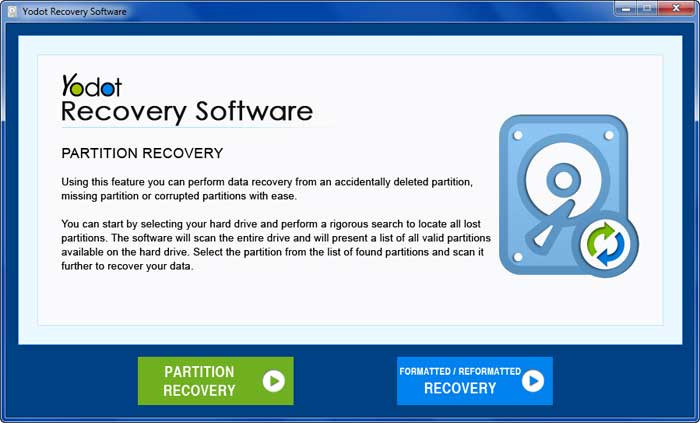
The most suggested and excellent tool to recover data from an unreadable flash drive is Yodot Hard Drive Recovery. This software can bring back all the files from the flash drive that is corrupted or inaccessible due to virus infection, format error, file system corruption, etc. with ease.
Steps To Retrieve Files From USB Flash Drive That Is Corrupted And Unreadable:
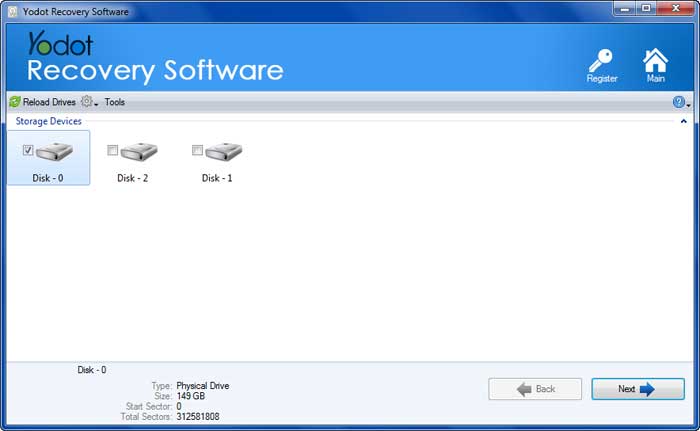
- Connect the corrupt and unreadable USB flash drive to your computer
- Download, install, and launch the Yodot Hard Drive Recovery software
- In the main window select Partition Recovery
- Click Next, select your corrupted and unreadable flash drive, and proceed
- Now you can select particular file types to restore or click on the Skip button to recover entire data from the USB drive
- Go through recovered files from the corrupt and unreadable USB drive in different view types.
- Preview and Save required files to a safe location on your system

Method 6: Reformat the Corrupted Disk
Note: Before you format the USB drive do not forget to back up your data using the previous method to avoid data loss from the Corrupted and unreadable USB Flash drive. Follow the below-mentioned step to Reformat the corrupted Disk:
- Open the Disk Management
- Locate the external drive from the list of disks
- Right Click on it and select the Format option
- If the file system is Raw, change it to NTFS and click OK
Method 7: Repair Logical Errors To Fix Corrupted And Unreadable Flash Drive
Microsoft Windows has an in-built repair tool that scans and fixes the disk drive for common error issues like corrupted and unreadable if they are found.
Step 1. Connect the flash drive to your computer system. Open My Computer/This PC.
Step 2. Right-click the Removable Disk that represents your flash drive, and then choose Properties.
Step 3. Under the Tools tab, click Check. It will then start the scan process.
Step 4. When finished, if any error was found, you can proceed with the wizard to fix it.
Step 5: Safely eject the flash drive and Reconnect it again.
Method 8: Format The Corrupted Device
Note: To avoid data loss, you must back up your data before formatting the unreadable and corrupted USB Flash drive.
Step 1. Press Windows + R keys to open the Run box. Type: diskmgmt.msc and hit Enter.
Step 2. In Disk Management, locate the unreadable flash drive, and check its disk information. If it's shown as a Raw file system, right-click on it and choose Format.
Step 3. Choose a file system like NTFS, FAT32, or exFAT and Perform a quick format checkbox.
Method 9: Delete and Create a New Partition on the Corrupted USB
Step 1. In Disk Management, locate the corrupted USB drive and right-click on it, select Delete Volume.
Step 2. Confirm to delete the volume on the USB drive by following the on-screen guide.
Step 3. After the USB drive has become the unallocated space, right-click the unallocated space and select New Simple Volume.
Step 4. Then Rename the drive, set the file system to NTFS or FAT32 on the USB drive, and follow on-screen guidelines to create a new partition on the USB drive. After this, you will be able to use the USB drive normally again.
The USB Drive can become corrupt or unresponsive for any reason, whether it's logical or physical. If your USB drive becomes corrupt or unresponsive, you can easily recover files by using professional data recovery software such as Yodot Hard Drive Recovery.
Conclusion:
If there are no backups, a corrupted and unreadable external hard drive can be a scary experience. The issue can be resolved without losing data if lost files are recovered before corrupted drives are repaired.
Related Articles

How Can I Recover Files from a Corrupted USB - DIY Guide..!
Visit this page to easily bring back files from corrupted USB drive on PC.

Retrieve Data from Damaged USB Stick
Here you will get clear idea about recovering data from damaged USB Stick on Windows system.
How to Extract Files from Corrupted Pen Drive?
Click on this link to get to know how to retrieve data from corrupted pen drive using best drive recovery tool.
How to Retrieve Damaged Pen Drive Data?
Learn how to get back files from damaged flash drive with the help of efficient data restoration utility.
Recover Data from Corrupted File System
Worried about huge amount of lost from hard drive due to corrupted file system? Then read this page.

Restore Data from USB Stick without Formatting
Perform data recovery from USB Stick without formatting it by using simple steps mentioned in this page.
