"My Windows computer's C drive was full and it was repeatedly showing a warning message in the taskbar. So in order to make free space, I have moved entire data to D drive. I even moved PST file as its size was very big. All files are opening after moving, except PST file. If I click on it, I get an error message stating that Outlook data file cannot be accessed. I don’t know what went wrong but I need to access PST file which is not accessible after moving it from C to D drive. Please help me with your valuable suggestions”
After moving PST file from one location to another, the user may find it difficult to access Outlook PST file data due to error messages. If you have the same issue, then do not worry!!!
Usually, PST file fails to respond and shows cannot be accessed error message when Outlook tool cannot recognize original destination of the PST file. This issue can be fixed within few steps by commencing the task detailed below.
How to Fix Moved Outlook PST Data Cannot Be Accessed Problem?
Step 1: First of all, open Outlook PST file and click on the File menu.
Step 2: Open Account Settings and switch to Email tab. Highlight the account that is having issues; hit Change folder option.
Step 3: Select New Outlook Data File option and give a name for new Outlook data file.
Step 4: Hit the OK button and choose subfolders by expanding the Inbox of the new data file.
Step 5: Opt OK and go to Account Settings again.
You will now find two Outlook profiles. The original one which has the issue and the other one which you have created.
Step 6: Again click on Change folder option.
Step 7: Choose the original PST file which has the issue and opt for OK.
Step 8: Close Account Settings window and restart your Outlook.
Many Outlook users have applied this method and most of them have come up with good result.
However, if something happens in the middle while you are moving Outlook PST file from one location to another, then this procedure will not work. Because, PST file’s internal structure would be damaged while moving; when it is halted by a power failure, improper system shut down, system freezing, software malfunction and so on.
Therefore, use relevant Outlook PST file repair software to fix corrupted PST file and access its contents again.
Outlook Data File Repair Tool:
Employ Yodot Outlook PST Repair software to fix PST file cannot be accessed error message after moving PST file from C drive to D drive, or from one computer to another. It involves two scanning methods i.e. Normal Scan and Smart Scan, which can be used to fix Outlook data file based on its level of corruption; hence you need not worry even though the PST is severely corrupted. Not just repairing, it has the ability even to recover Outlook sent emails, Contacts, Calendar entries, Tasks, RSS Feeds, custom created folders, etc.
To avoid misuse of Outlook PST file, many users encrypt it by assigning a password. However, if encrypted or Password protected PST file get damaged, then this software can easily repair such Outlook data file in few simple steps. At the same time, entire details from an email such as subject, CC, BCC, and the recipient can be rescued by using this excellent Outlook PST file repair software. It will successfully repair PST and OST data files configured on Microsoft Outlook 2000, 2002, 2003, 2007, 2010, 2013 and 2016 versions.
Steps to Fix Outlook PST File Which Cannot Be Accessed After Moving:
1. Download and install Yodot Outlook PST Repair software on your Windows computer.
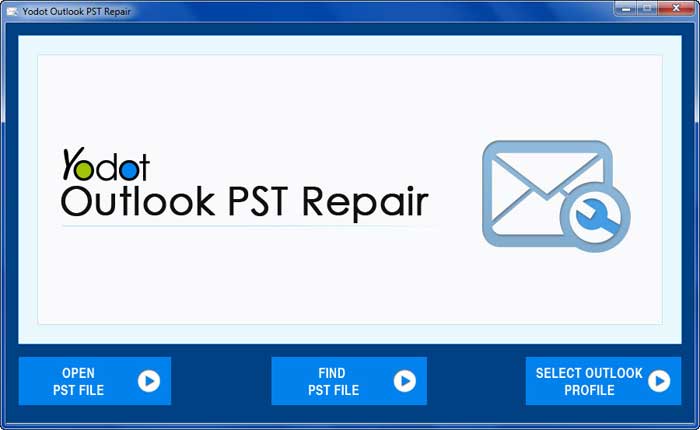
2. Run the software and select,
- Open PST file- if you know PST file location
- Find PST File- if PST file location is unknown
- Outlook Profile- if you have multiple Outlook profiles
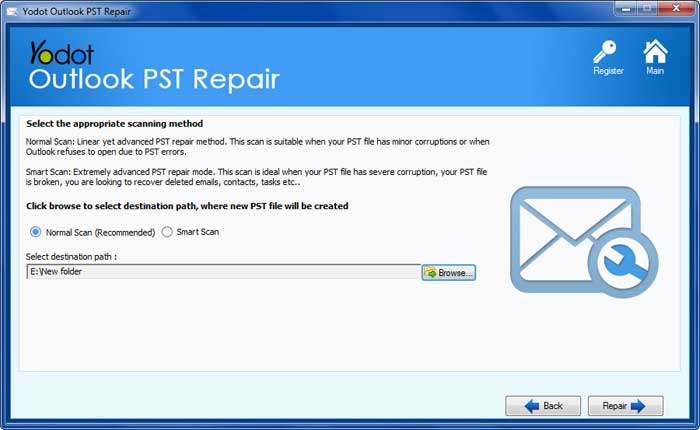
3. After selecting the required PST file, choose a suitable scanning technique from,
- Normal Scan - to fix minor corruptions
- Smart Scan - to fix severe corruptions
And, specify destination location to save the repaired PST file and hit Repair button.
Soon after scanning, fixed Outlook PST file will be displayed in Outlook styled menu. Preview recovered items in the repaired PST file and at last, visit saved location in order to import the PST file.

Tips to Avoid PST File Corruption:
- Never move Outlook PST file when there is a continuous fluctuation in power supply
- Backup important PST file using Import/Export option available in Outlook