-
MOV Repair after CRC Error Corruption
Learn how to repair corrupt or damaged MOV files that refuse to play in your QuickTime Player.
Repair MOV File after Recovery Tool Error
Know how it is possible to repair a QuickTime movie clip that got damaged in-between recovery process.
-
This page helps the user to repair corrupted MOV file after header corruption on Mac operating system.
Go through this page to repair your MOV video file, which refuse to play due to corruption.
-
MOV Repair after QuickTime 2048 Error
Did you lose important MOV files due to QuickTime Error 2048 and don’t have backup of those files? Then read this page for help.
Searching for an answer to fix broken MOV Files? Just go through this page to find out its answer
-
This page will guide you the way to repair corrupted QuickTime MOV files on Mac OS
Go through this page to learn about repairing your damaged iPhone MOV video files on Mac operating system.
-
: Find out a best method to fix your corrupt MP4 video files that are unplayable on Mac machine.
Yodot MOV Repair software provides you with exceptional repair features to fix your broken or damaged MOV, MP4, M4V video files. Guarantees high success ratio in case of repair compared to any other MOV Repair tools.
Smoothly repair and fix all your MOV file that are corrupt due to firmware error, memory card error, file transfer error, file system corruption, OS-reinstallation etc.
How Yodot MOV Repair works?
- Download Yodot MOV Repair application to your Mac
- Install and Run the application by following the steps shown on the screen
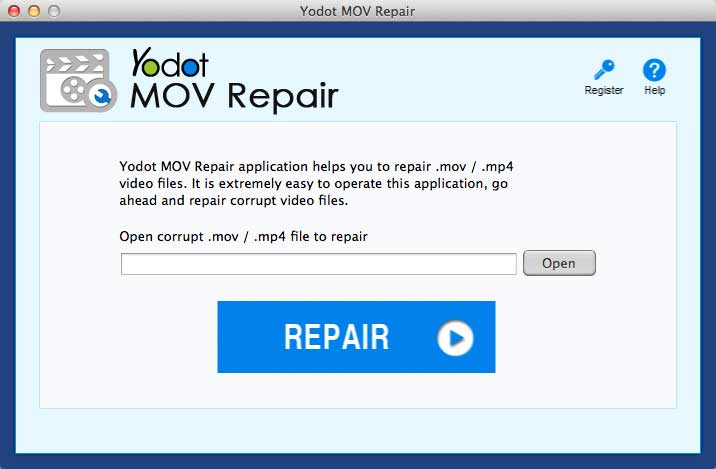
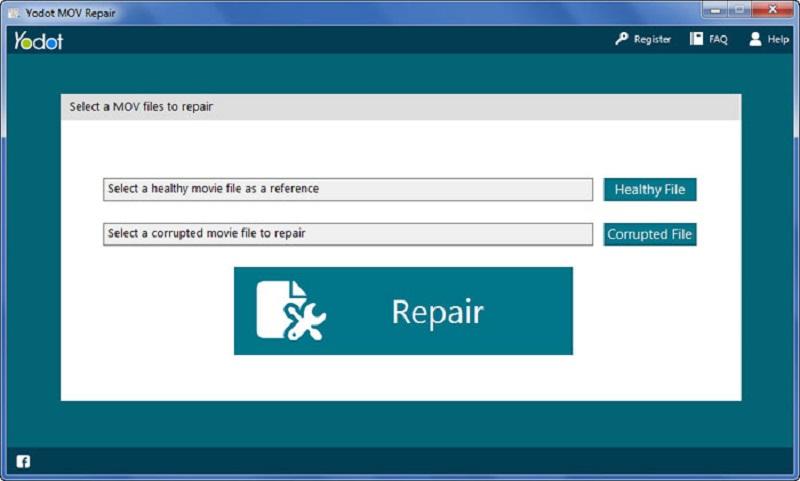
- When the first window opens, browse to select the desired MOV file that is to be repaired
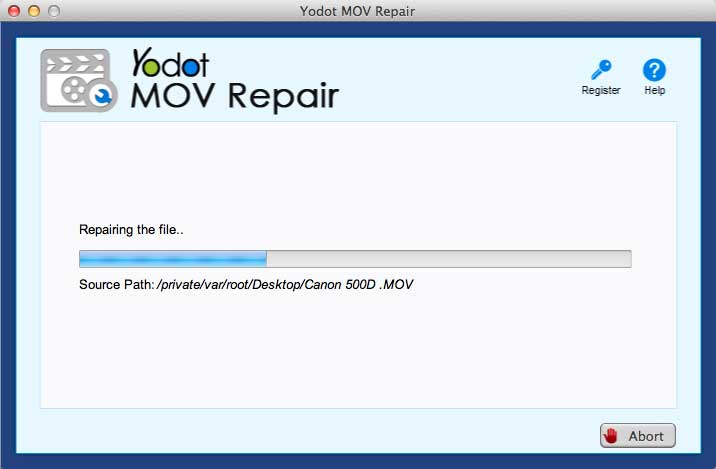
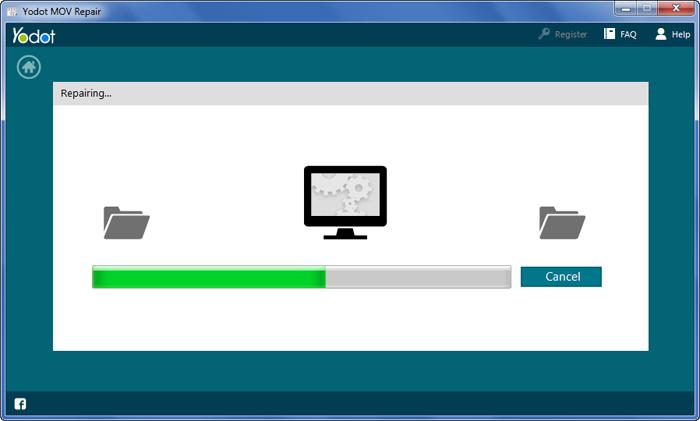
- As you select “Repair” option, the software starts the scanning process to repair the selected MOV file
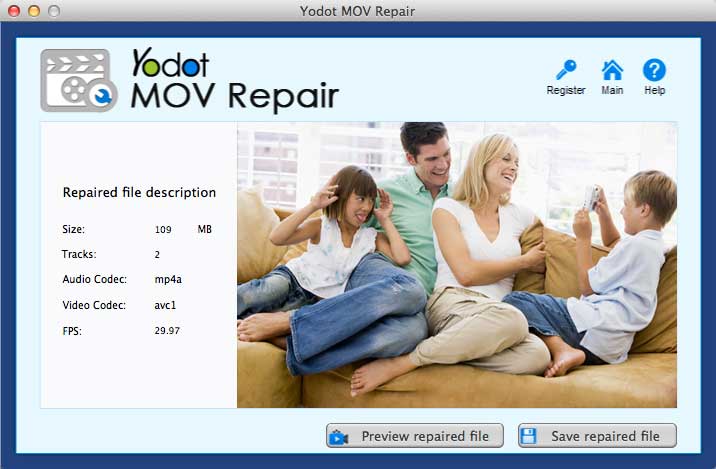
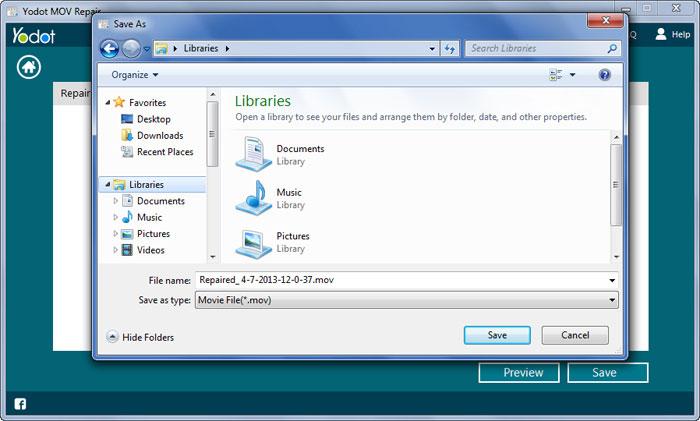
- Within few seconds (depending upon the size of the video file), software completely repairs the video file and shows the result along with the file description
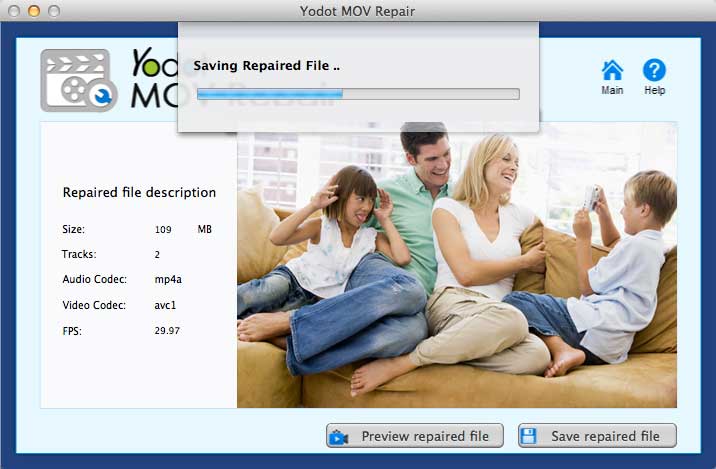
- Now, preview the video file to confirm successful repair of the file
Why Yodot MOV Repair Tool?
| Repair Video Files |
|
| Advanced Technique |
|
| Preview Option |
|
| Compatibility |
|
| User-Friendly |
|
| Free Tech Support |
|
| Free Trial Version |
|
How video file gets corrupt?
MOV, MP4, M4V files can get corrupt because of numerous reasons that occur unknowingly. Below are the chief reasons;
- Any kind of interruption that occurs while recording video can cause corruption or damage to the video file. For example, accidentally turning off your camera / camcorder or using your camera / camcorder while battery power is low
- Memory card related errors. When ejecting memory card from camera / camcorder during file transfer or while recording a video
- Video files present in the memory card can get corrupt by using the memory card in different devices
- While transferring video files between camcorder / camera and PC, any kind of error like sudden shutdown or power rise can damage the MOV, MP4 files
- Video files can get damaged due to faulty firmware, which makes them inaccessible
- Other corruption scenarios can be file system corruption, OS re-installation, bad sectors, MBR corruption etc.
- Corruption caused while editing videos using video editing tools
| Supported Operating Systems | Supported Cameras & Camcorders |
Hardware Requirements
Supported File Systems
|
|
Other Popular Software
Recover deleted, lost office files, PDF documents, images, database, emails and other file types using the fastest file recovery software for Windows. Download the free trial of the software and evaluate the chances of recovery |
Simple and easy to use undelete application for Mac, the software efficiently recovers files emptied from Trash, deleted from Desktop or from any user folder on Macintosh operating system. |