"I moved all the video clips recorded on iPhone to my friend's laptop and used some video editor to chop unwanted segments. Later, I copied these videos to my Macintosh machine and tried to play them in QuickTime player; but the video refused to play saying there are some issues with the file. Now, as I don't carry any backup copy I am worried what should be done with these unplayable video files. The movie files are in .mp4 file format. Can anyone suggest me a relevant solution to fix Mac not playing MP4 file issue without damaging the files.”
This kind of situation might be faced by many Mac users who wrongly handle MP4 videos. The MP4 file format is greatly in use to save video data from different devices like iPhone, digital camera, Handycam, etc. It is an official name for MPEG-4 video format. Most of the gadgets use this format (.mp4) to save recorded video clips and it plays well I different multimedia players on Mac with ease.
If MP4 video files are corrupt in these instances, Mac may not play MP4 files in any of the multimedia players. A user may get worried thinking how to fix when Mac is not playing MP4 videos. However, no need to get disappointed so much because the VLC player can repair your MP4 files.
Repair MP4 Files on Mac Using VLC Player:
Step 1: First, create a copy of your MP4 video file and change its file extension to .avi. Then, open VLC player, go to Preferences and select Input/Codecs option. Next, click on the Save button. Choose Always Fix option for Damaged or incomplete AVI file and open the MP4 file that won’t open on Mac.
Step 2: Open VLC, go to Media, and select Convert or Save option. Select your MP4 video using add input files or streams option and click on the Convert or Save button. In the Convert window, provide a name for the repaired MP4 video and select input codec from the Profile menu in the Settings section. Hit the Start button.
If the above steps cannot repair Mac not playing MP4 problem, use right video repair tool to fix damaged MP4 video files easily on Mac.
Repair Mac Not Playing MP4 Video:
Yodot MOV Repair is suitable software to fix Mac not playing MP4 video files issue caused due to severe damage or corruption of video files. It has the capacity to repair broken MP4 video files from iPhone, digital multimedia devices, camcorders, etc. Apart from MP4 movies, it can fix unreadable MOV files fix unreadable MOV files on Macintosh machines like MacBook (Air and Pro), Mac Mini, iMac and Mac Pro with no trouble. This application fetches good results in repairing video files on both Mac and Windows OS. Mac users can utilize this amazing program on OS X Snow Leopard, Mountain Lion, Lion Mavericks, Yosemite, El Capitan, Sierra, Ventura, Monterey, Big Sur and Catalina OS X versions. Whereas, Windows computer users can employ this product on Windows 11, Windows 10, Windows Server 2008, Server 2003, Windows 8, Windows 7, Windows Vista, and XP OS operating systems.
3 Steps to Repair MP4 Videos Not Playing on Mac:
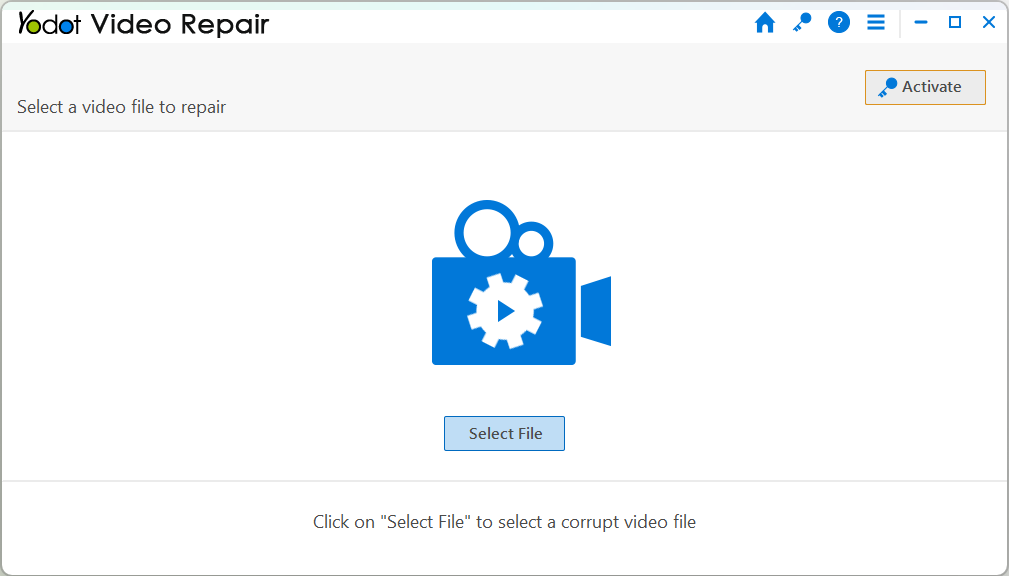
Step 1: Lunch Yodot MOV Repair software, select the corrupt or damaged .mp4 video file and click on the Repair button.
Step 2: Now, play and verify the fixed MP4 file using Preview repaired file option.
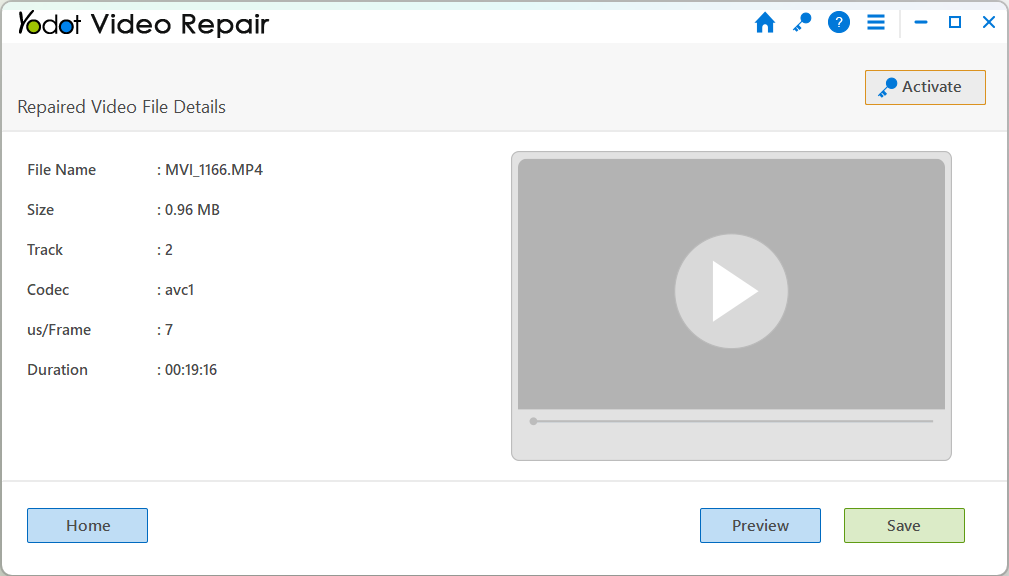
Step 3: At last, Save the repaired MP4 video on your desirable location (preferable to a new location).
Important Tips:
- Avoid interruptions when transferring MP4 videos from/to any storage device
- Don’t use unreliable video converter or editing tools to edit or convert MP4 video files
- Backup important MP4 videos in a safe location regularly