“Hi, I created a vital Photo Booth movie and faced unforeseen application crash. Now, all I have is a broken MOV file. The video is not at all playing, irrespective of player that I use. The video file is something, which I can't film all over again. Does anyone know how to repair Photo Booth .mov file that is corrupted? If yes then please guide me.”
Few things in life can never be recreated; so it’s damn hard to lose such irreplaceable things. You may feel lost when a precious video that is built with so much effort, became unplayable all of a sudden. But, don’t give up. Nothing is impossible if you try. Never let your priceless effort to become a waste of time. There are countless ways to fix your unplayable Photo Booth video. Here, it is suggested efficient software, with the purpose of helping you in fixation of a precious Photo Booth movie.
Tool to repair Photo Booth video:
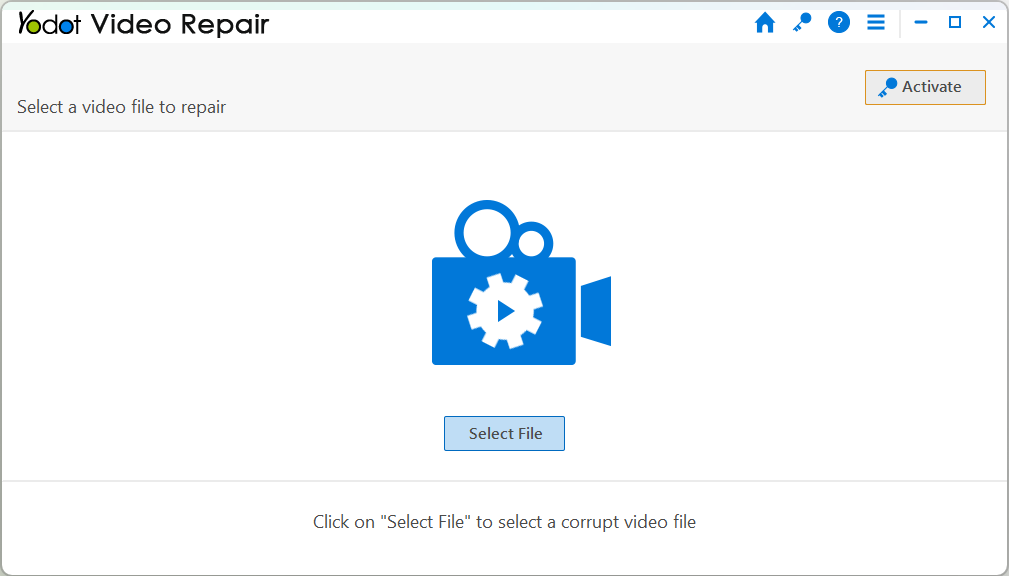
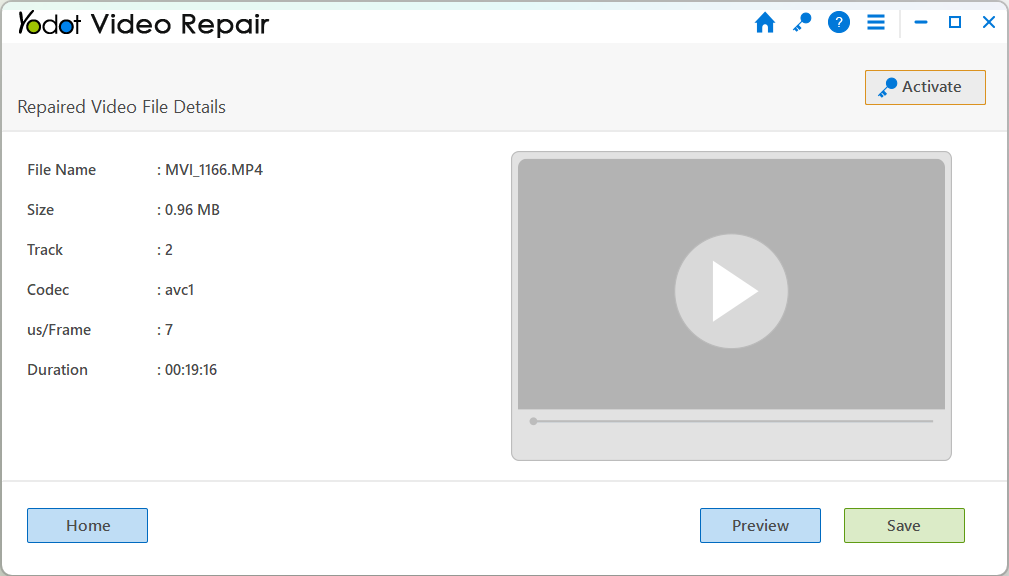
An all time solution for unplayable .mov video is Yodot Video Repair software. This effective program is an easy and perfect fix for corrupted, damaged and inaccessible Photo Booth MOV files. The specialized algorithm fitted in this software scans the affected video, creates replica of it and repairs the reproduced file; thus your source file is untouched. Once the repair process is done, you can play and check the file. If you are satisfied with the result, you can save the file afterwards. If you are on the urge to fix corrupted MP4 video on SD card that plays neither in QuickTime nor in any other media players then this MOV repair utility can do it for you. The tool effortlessly fixes header issue, logical errors, audio or visual problems in your MOV file. In addition it restores corrupted MP4 and M4V videos back to healthy state. The program is best fitted for all editions of Windows as well Macintosh systems and supportive with all variety as well brands of storage media.
Steps to fix corrupted Photo Booth .mov video:
- Get Yodot MOV Repair fix on your Mac system
- Click on Open button on main screen
- Select your unplayable Photo Booth MOV file and hit Repair key
- Preview the video and save it in another location
So far you learnt how to fix a corrupted Photo Booth video. But, not always an unexpected Photo Booth crash results in file corruption. There also exist numerous other factors that might be responsible for corruption of Photo Booth video file. In those, few are listed here.
How Photo Booth videos get corrupt?
- Inappropriate download of video due to issue in network
- Incorrect or interrupted file conversion
- Upshot of unsupported player
- Video file altered by malware
- Improper way of handling Photo Booth
- File system corruption of storage media where the video is stored
- Video header file damage
- Errors while upgrading Photo Booth application
- Closed Photo Booth app instead of pressing stop button, after video record
- Shutdown/crash/restart of Macintosh when Photo Booth is running
- Photo Booth freeze during video record
Note:
- Avoid usage of other applications when recording any video in Photo Booth
- Make sure the battery has long life before you start recording a video
- Don’t try to open other files during ongoing record