3 Best Methods to Recover QuickBooks Data From Hard Drive
QuickBooks data vanished all of a sudden? Wondering how to recover them? Do not worry, follow this article to get back your QuickBooks data and be worry-free.
Written by Lucy John on February 21, 2024
QuickBooks is the best-fitted accounting software for small-scale businesses. It plays a major role in managing core accounts, payroll, billing and invoicing, inventory administration and financial reporting.
The program even facilitates promotion tools, trade services, goods and materials, and training facilities. Every feature is built into this application based on individual business and their requirements.
Where QuickBooks Data Files are Stored?
QuickBooks data files are stored in the following locations:
- C:\users\public\public Documents\Intuit\QuickBooks\Company Files or
- C:\programData\Sage\Accounts\for sage or
- C:\Program Files\Intuit\ path.
From these locations, you should be able to choose the version/year of the application. Usually, QuickBooks files are stored in .IIF, .QBA, .ND, .QBM, .QBB, .QBX, .QBY, and .QBW formats on your host machine.
Table of Contents:
How To Recover Deleted QuickBooks Files From The Hard Drive?
Method 1: Perform A Manual System Search To Recover Quickbooks Data
Method 2: Restore Data By QuickBooks Auto Data Recovery
Method 2.1: Restore Quickbooks Data By Current Transaction Log File And ADR Company File
Method 2.2:Quickbooks Data Recovery By ADR Transaction Log File And ADR Company File
Method 3: Recover QuickBooks File From Hard Drive Using The Yodot File Recovery Tool
Tips To Avoid Losing QuickBooks Data
Tips to restore a backup of your company file(.qbb)
How to Recover Deleted QuickBooks Files From the Hard Drive?
Method 1: Recover Lost QuickBooks Data By Using Current Transaction File
One of the biggest reasons for data loss in QuickBooks is file duplication. So in case of data loss, you should first search the system manually for the lost file.
Sorting out the data files on the basisi of modified date and deleting the duplicate files will reolve the data change conflicts and your data changes will be visible again.
- In the search dialogue box search for the missing file with .QBW extension.
- Look for duplicate files. They may cause conflicts.
- Right-click on the .QBW file and click on Properties. In the General tab check whether the file is labeled as a QuickBooks Company File or not.
- Confirm the path of the file and check its date modified.
- Copy and Paste the file in the correct folder and delete the rest of the duplicate residual files that can cause conflicts.
If your QuickBooks data was not found using the manual method then move on to the next method.
Method 2: Restore Data By QuickBooks Auto Data Recovery
QuickBooks provides its users with a feature called Auto Data Recovery, which can be used in case of data loss or corruption, and can aid you to recover almost all of your data. Below is a description of how you can utilize this feature.
Note: QuickBooks Auto Data Recovery feature will only help you if you are a Pro version user.
Method 2.1: Restore QuickBooks Data By Current Transaction Log File And ADR Company File
If you have the original Transaction Log file along with the .QBW.adr file, this approach enables the retrieval of recent transaction data. Here's what you have to do.
- Create a new folder on your PC.
- Locate the .TLG file in your company folder; it shares the same name as your company file.
- Copy the .TLG file into the newly created folder.
- Find the .QBW.adr file in the QuickBooksAutoDataRecovery folder, located alongside your company file.
- Copy the .QBW.adr file into the same newly created folder.
- Rename the copied .QBW.adr file to .QBW.
- Open QuickBooks and use the company file and transaction log files in the new folder to log into your company file.
- Click on the File tab. Select Utilities from the dropdown menu.
- Choose Verify Data from the Utilities submenu, to verify the accuracy of the data.
- If the data is accurate, delete the damaged files, then copy the company file and transaction log files back to their original location.
Method 2.2: Quickbooks Data Recovery By ADR Transaction Log File And ADR Company File
In case you are unsure about the accuracy of the current transactional log file and company file, and suspect that the files are inaccurate you can use the ADR version for data recovery.
Note: QuickBooks Auto Data Recovery creates a recovery file for Transaction Log File (.TLG). This method can be used when your .TLG file is inaccurate and is similar in steps to the previously mentioned method
- Just like the previous method, create a new folder.
- Instead of .TLG, locate copy, and paste .TLG.adr file.
- Rename and remove .adr from both .TLG.adr and .QBW.adr file.
- Follow the same steps as in the first method to verify data accuracy.
Yes, if you are a Pro Version user, QuickBooks Auto Data Recovery will help you recover lost or deleted vital QuickBooks files like company files, backup files, accounts copies, etc.
But, what if you are an Enterprise or Premier Accountants Version user? Auto Data Recovery is not implemented in these editions. In this situation you can easily restore your QuickBooks files with the help of the Yodot File Recovery tool; even if you don’t possess a backup of lost/deleted files.
Method 3: Recover QuickBooks File From Hard Drive Using The Yodot File Recovery Tool
Yodot File Recovery Software can easily help you recover deleted or lost QuickBooks files from a hard drive without any hassle. Apart from meeting file loss or deletion scenarios, Yodot brilliantly assists in recovering files when Windows fails to boot due to inadvertent power failure, the hard drive is formatted, turned RAW, or is severely corrupted.
Steps To Restore Deleted Or Lost QuickBooks Files Using Yodot:
- Download and Install Yodot File Recovery software on a Windows computer
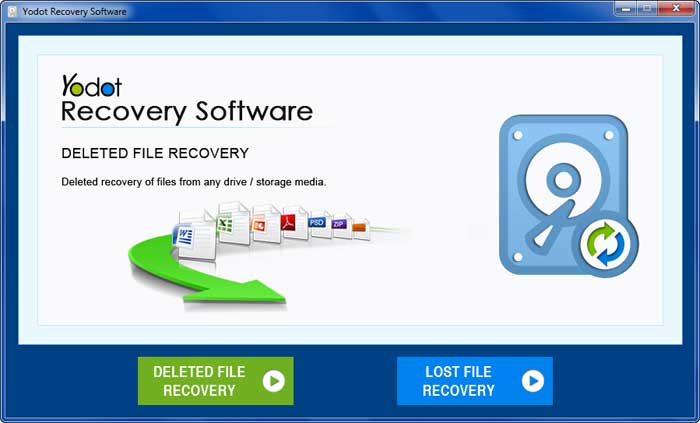
- After launching the tool, select either Lost File Recovery or Deleted File Recovery
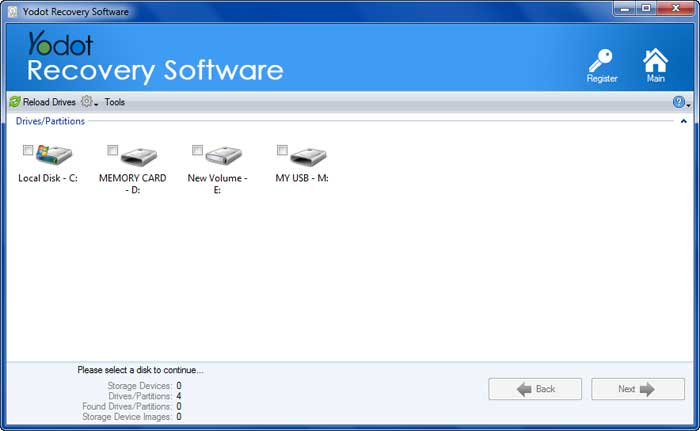
- Choose the QuickBooks drive from the shown Drives/Partitions list
- In the search tab enter the extensions of the file, that you need to recover
- .i.e. type .IIF, .QBA, .ND, .QBM, .QBB, .QBX, .QBY, .QBW
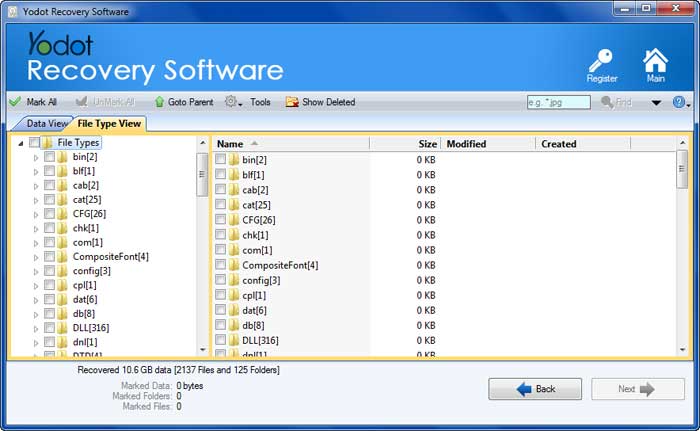
- Pick your desired QuickBooks file in any view type
- Store them safely in the desired destination location (not source location)
Tips To Avoid Losing QuickBooks Data
- Make a habit of backing up, (at least) vital files frequently.
- Use strong trusted antivirus software to keep your computer clean and virus and malware-free.
- Avoid abrupt or inappropriate shutdown of the system.
Tips to Restore a Backup of Your Company File(.qbb)
QBB file is essentially a copy of QBW file (Company File), created by QuickBooks for backup purposes. It contains the same data as the QBW file but is encrypted and compressed to save space and increase security while backing up your data.
This tip will help you when you face some technical errors like system crashes or malware issues and help you to restore a backup of your company file. Follow the below steps on how to restore a backup:
Note: when you are about to restore QuickBooks use the (.qbb) backup company file to create a (.qbw) new company file.
- Go to File menu and click on Open or Restore Company.
- select Restore a backup copy then click on Next.
- Click on Local Backup and then click Next. check for the backup company file. It will look like (company name).qbb.
- Select a folder to save the file and click Open and if you are okay select Save
Note: you may see a message saying to overwrite your data, think wisely, and do what should be done for the file.
Conclusion
In this article, we have discussed everything that you should know about recovering deleted or lost QuickBooks files. If you have any queries related to the article or if you think we have missed out on anything on the QuickBooks file recovery topic, you can help us better the topic. Remember to share the word if you liked this article.
Related Articles

How to Recover Deleted Files from External Hard Drive?
This article serves as a perfect guide to recover deleted files from external hard drive.

Restore Shortcut Files on External Hard Disk
Download Yodot File Recovery program to retrieve all erased or missing shortcut files on External Hard Drive.

Restore AVI Files from SD card
Need help in recovering AVI files after they were lost or deleted from SD card? Then read on the information provided in this page.

Recovering AVS Files
Best and simple way to recover lost /deleted AVS video files from any storage drive on Windows OS.

Deleted Video Clips Recovery
Go through this page information to know how to restore deleted video clips on windows PC.

Recover Deleted Videos on Cell Phone
Visit this page and find out how to restore videos deleted from cell phone on Windows OS.
Why Choose Yodot?
12+Years Of Experience
100%Money Back Guarantee
5M+Downloads
100%Secure Shopping
FreeTech Support
