“I installed new antivirus software in the system yesterday. After running this software, a few of my files got deleted from the system, which includes significant MPP files. Without that file, I cannot proceed further in my work. Please reply soon.”

Microsoft Project is a project management software developed by Microsoft, designed to assist a project manager in developing a plan, assigning tasks to resources, managing the budget, tracking progress, and analyzing workloads in the organization. It is included in two editions, Standard and Professional. The file format of the Microsoft project file is “.mpp.”
But sometimes, situations like those mentioned above will go through the user in problems. Let us know some other scenarios where the project file may get removed:
- Accidentally applying the “Shift” and “Delete” key combinations on the project file
- Canceling project file copy operation when it is in progress
Common Causes of Microsoft Project File Loss
Losing Microsoft Project files can be a frustrating experience. Understanding the common causes can help you take preventive measures and minimize the risk of file loss. Here is one common cause:
- Accidental Deletion: Files are unintentionally deleted without having a backup copy.
- System Crashes: Unexpected system shutdowns or software conflicts can lead to file loss or corruption.
- Hardware Failure: Issues with the storage device or computer hardware can result in the loss of Microsoft Project files.
- Software Errors: Problems within the Microsoft Project software itself, such as bugs or compatibility issues, can cause file corruption.
- Virus or Malware Attacks: Malicious software can infect the computer and damage or delete Microsoft Project files.
- Human Error: Mistakes like accidental overwriting, improper file handling, or incorrect saving procedures can lead to the loss of important project files.
It is important to be aware of these common causes to take necessary precautions such as regular backups, using reliable antivirus software, and practicing safe file management to minimize the risk of Microsoft Project file loss.
How To Restore MS Project Files Using Yodot File Recovery Tool?
Yodot File Recovery is an easy-to-use tool that helps you get back deleted or lost files. It scans your storage devices to find and restore different types of files, like documents, photos, and videos. Whether you accidentally deleted your files or experienced a system issue, Yodot File Recovery makes it simple to recover your important data.
Procedure To Extract .Mpp Files:
- First , install Yodot File Recovery tool on your Windows system and run it
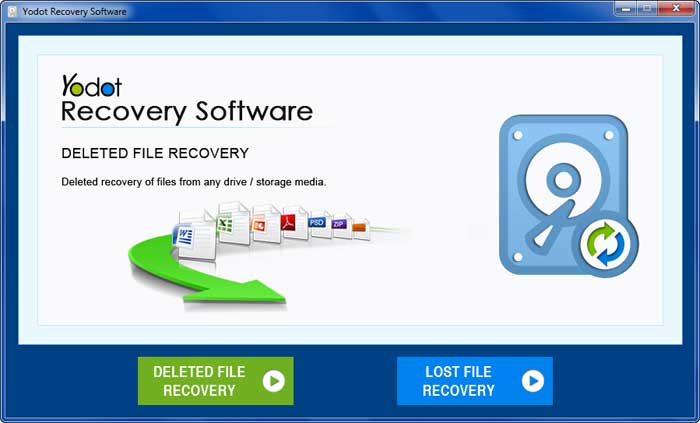
- Now, you can see the “Deleted File Recovery” and “Lost File Recovery” options on the main screen; choose the option by considering your file loss situation.
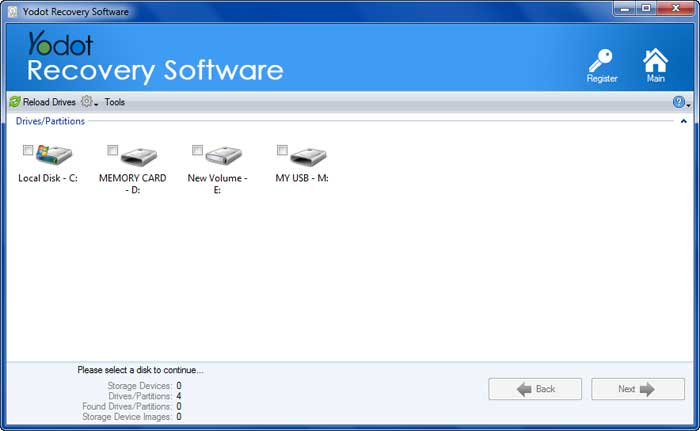
- Then, it will show list of drives associated with that system, select the one from where .mpp files need to be restored
- After selecting drive, it will start scanning process
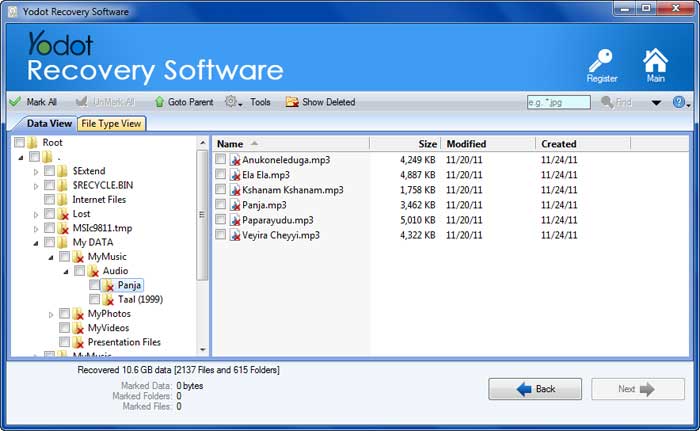
- Once scanning is finished, you are going to see a list of recovered files in two different views such as “Data View” or “File Type View”
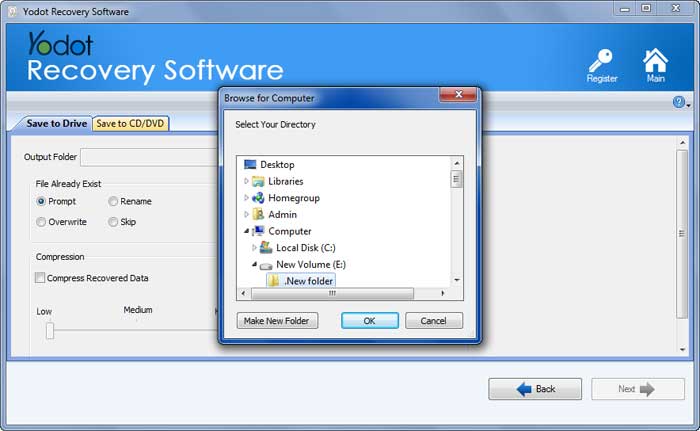
- Just select the files whose name matches to mpp files and save them in a safe and secured place other than source
Method 2: Restoring MS Project Files with Recovery ToolBox for Project
If you need to repair corrupted, retrieve deleted, or recover lost MS Project files, you can try using a tool called Recovery ToolBox for Project. This tool is developed by Microsoft and is part of the MS Office suite, offering assistance in managing projects.
To restore your MS Project files using this tool, you can follow these steps:
- Step 1: Launch Microsoft Project Professional and access Project Server.
- Step 2: Open the specific project file that requires recovery.
- Step 3: Save the file by selecting the Save As File option and choosing the .mpp file format.
- Step 4: Log in to Project Server as an Administrator.
- Step 5: Utilize the Clean Up Project Server Database feature.
- Step 6: Remove the project and its associated SharePoint subweb.
Method 3: How to Activate the Autosave Feature?
To automatically save your MS Project files and improve the chances of recovering unsaved work, you can enable the autosave feature. Autosaving makes it easier to retrieve accidentally deleted MS Project files.
Follow the steps below to activate the autosave feature:
- Step 1: Open MS Project and click on File.
- Step 2: Select Options and go to the General tab.
- Step 3: Choose the Autosave project time and set it as per your preference.
- Step 4: To recover unsaved MS Project files, open a new document and go to File, then Info, followed by Manage WorkBook.
- Step 5: Click on Recover Unsaved Files and select the draft that resembles your project. The office will load it for you.
By following these four simple steps, you can activate the Autosave feature in MS Project and easily recover unsaved project files if needed.
Conclusion:
In conclusion, there are easy methods to recover MS Project files. By enabling the autosave feature, your files will be saved automatically, making it easier to retrieve unsaved work and accidentally deleted files. Additionally, tools like Recovery ToolBox for Project and Yodot File Recovery offer further options for getting back your MS Project files. These methods ensure the safety and recovery of your important project data.
Frequently Asked Questions
TMS Project does not provide built-in recovery options. However, it does have an autosave feature that can help you recover unsaved work. Additionally, you can try using the "Recover Unsaved Files" option available under the "File" menu to restore any unsaved changes.
If your MS Project file becomes inaccessible, you can try opening it with a different version of MS Project software. Alternatively, you can create a new project file and import the tasks or resources from the inaccessible file.
Important precautions!!
- Avoid cancelling copy operation in the mid
- Before applying “shift” “delete” key combination check twice or thrice
- Always maintain extra backup for significant files
- Avoid installing unauthorized antivirus software in system